TL;DR
The average WordPress site runs 20–30 plugins. Many of them do things that could be handled by 2–15 lines of PHP in your functions.php file. Every unnecessary plugin is another monthly update, another potential security hole, another thing that can conflict with everything else. This article shows 5 common plugins you can replace with simple code snippets — and explains when you should keep the plugin.
The plugin bloat problem
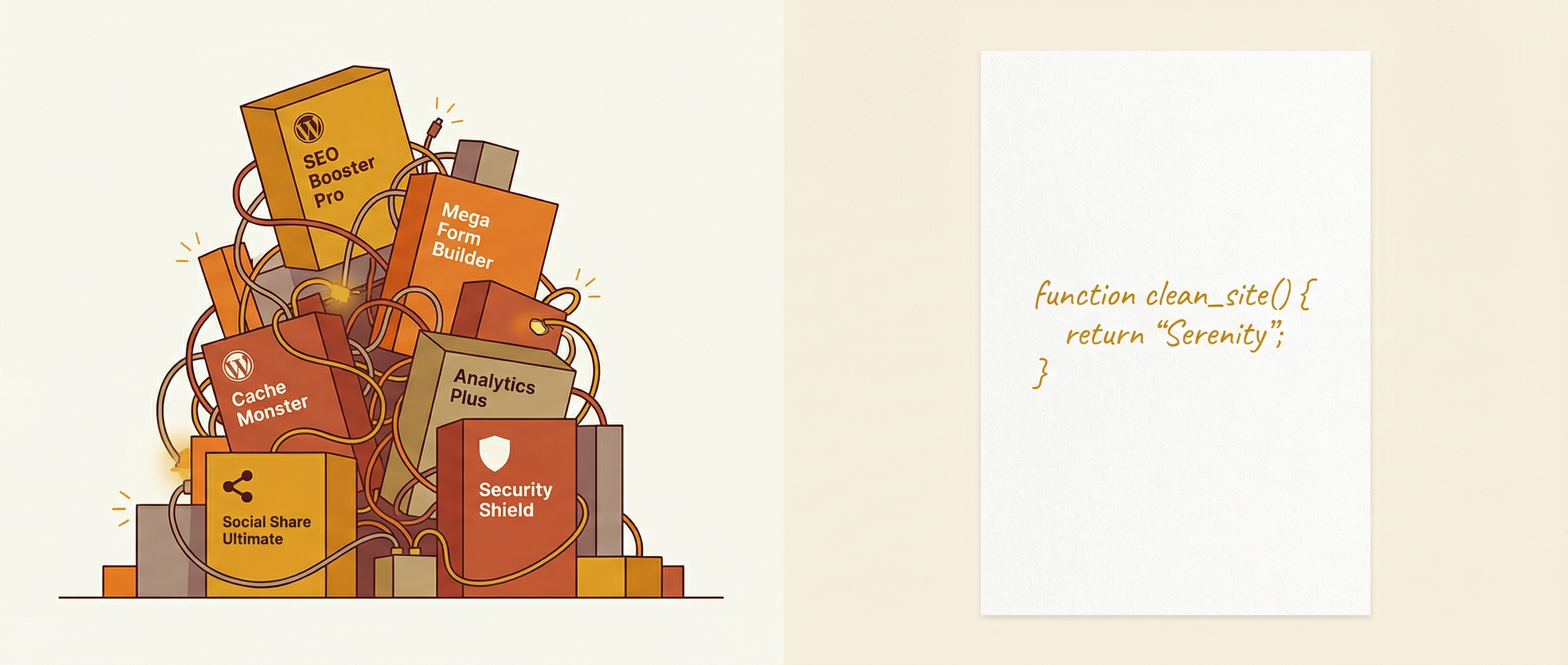
WordPress has over 60,000 plugins. Need to show the last modified date on posts? There's a plugin. Want to change the footer text in the admin area? There's a plugin. Need to redirect users after login? You guessed it — plugin.
The problem isn't that these plugins exist. It's that people install them for things that take 3 lines of code.
Every plugin you install:
- Needs regular updates (or becomes a security risk)
- Can conflict with other plugins during updates
- Adds database queries and HTTP requests that slow your site down
- Increases your attack surface — more code means more potential vulnerabilities
That doesn't mean all plugins are bad. But it means you should know the difference between a plugin that's earning its spot and one that's taking up space.
Here are 5 popular plugins that could be a few lines in your functions.php file.
1. Last Modified Date
The plugin way
WP Last Modified Info — 60,000+ active installs. Adds the "last updated" date to your posts and pages, plus Schema.org markup for SEO.
It's a full plugin with settings pages, template tags, shortcodes, REST API endpoints, and over 2,000 lines of code. Most people install it just to show when a post was last updated.
The code way (~10 lines)
// Show last modified date after post content
add_filter( 'the_content', function( $content ) {
    if ( is_singular('post') ) {
        $modified = get_the_modified_date('F j, Y');
        $content .= '<p class="last-updated">'
            . 'Last updated: ' . esc_html( $modified )
            . '</p>';
    }
    return $content;
});

// Add dateModified to your existing Schema (if using Yoast/RankMath)
// Both Yoast and RankMath already output dateModified in their Schema.
// If you need it manually:
add_action( 'wp_head', function() {
    if ( is_singular('post') ) {
        echo '<meta property="article:modified_time" content="'
            . esc_attr( get_the_modified_date('c') ) . '">';
    }
});
Result: 15 lines of code vs. a 2,000+ line plugin. Same output. Zero plugin maintenance.
2. Disable Comments
The plugin way
Disable Comments — 1,000,000+ active installs. Globally disables comments and trackbacks across your entire site. Removes comment-related items from the admin menu, dashboard, and admin bar.
The code way (3 lines)
// Disable comments on all post types
add_filter( 'comments_open', '__return_false', 20, 2 );
add_filter( 'pings_open', '__return_false', 20, 2 );
add_filter( 'comments_array', '__return_empty_array', 10, 2 );
Want to also hide the comments menu from the admin sidebar? Two more lines:
add_action( 'admin_menu', function() {
    remove_menu_page( 'edit-comments.php' );
});
add_action( 'init', function() {
    remove_post_type_support( 'post', 'comments' );
    remove_post_type_support( 'page', 'comments' );
});
Result: 3–8 lines vs. a plugin with hundreds of thousands of lines of code in its repository. For turning something off.
3. Limit Login Attempts
The plugin way
Limit Login Attempts Reloaded — 2,000,000+ active installs. Blocks IP addresses after too many failed login attempts. Comes with dashboards, logs, cloud-based blocking, premium tiers, and a growing feature set.
The code way (~15 lines)
// Basic login attempt limiter using transients
add_filter( 'authenticate', function( $user, $username, $password ) {
    if ( empty( $username ) ) return $user;

    $ip = $_SERVER['REMOTE_ADDR'];
    $key = 'login_attempts_' . md5( $ip );
    $attempts = (int) get_transient( $key );

    if ( $attempts >= 5 ) {
        return new WP_Error( 'too_many_attempts',
            'Too many login attempts. Try again in 15 minutes.'
        );
    }

    // If login fails, increment counter
    if ( is_wp_error( $user ) ) {
        set_transient( $key, $attempts + 1, 15 * MINUTE_IN_SECONDS );
    }

    return $user;
}, 30, 3 );
Result: 15 lines using WordPress's built-in Transients API. No database tables, no settings page, no premium upsells. Just a counter that blocks brute force attempts after 5 tries for 15 minutes.
Note: for high-traffic or security-critical sites, a dedicated security plugin with IP reputation databases and advanced rate limiting is worth it. This snippet handles the 90% case.
4. Custom Admin Footer Text
The plugin way
Several plugins exist solely to change the "Thank you for creating with WordPress" text in the admin footer. Settings pages, options, the works.
The code way (2 lines)
add_filter( 'admin_footer_text', function() {
    return 'Built and maintained by <a href="https://your-agency.com">Your Agency</a>.';
});
Result: One filter hook, one function, done. This is a textbook example of a plugin that shouldn't exist.
5. Redirect After Login
The plugin way
Peter's Login Redirect and similar — 100,000+ active installs. Redirects users to a specific page after they log in, with rules per role, per user, per group.
Most people install it to send everyone to the homepage instead of the dashboard.
The code way (3 lines)
add_filter( 'login_redirect', function( $redirect_to, $request, $user ) {
    return home_url( '/' );
}, 10, 3 );
Need role-based redirects? Still just a few lines:
add_filter( 'login_redirect', function( $redirect_to, $request, $user ) {
    if ( ! is_wp_error( $user ) && in_array( 'administrator', $user->roles ) ) {
        return admin_url();
    }
    return home_url( '/my-account/' );
}, 10, 3 );
Result: 3–6 lines vs. a full plugin with options pages, user-level rules, and database tables you'll never need.
When you SHOULD use a plugin
Not everything should be a code snippet. Some things genuinely need a plugin:
- Complex functionality — WooCommerce, advanced SEO, form builders. These do hundreds of things and maintain them well.
- Security-critical features — Two-factor authentication, web application firewalls. You want someone who specializes in security maintaining this code, not a snippet you wrote once and forgot about.
- Ongoing compatibility work — Things that need to stay compatible with every WordPress update, every PHP version, every hosting environment. That's what plugin developers do for a living.
- Features with admin interfaces — If non-technical people need to configure it, a plugin with a settings page makes sense.
The rule of thumb: if the plugin is doing something simple that you can fully understand in 5 minutes, consider replacing it with code. If it's doing something complex that requires ongoing maintenance and security updates, keep the plugin.
The maintenance math
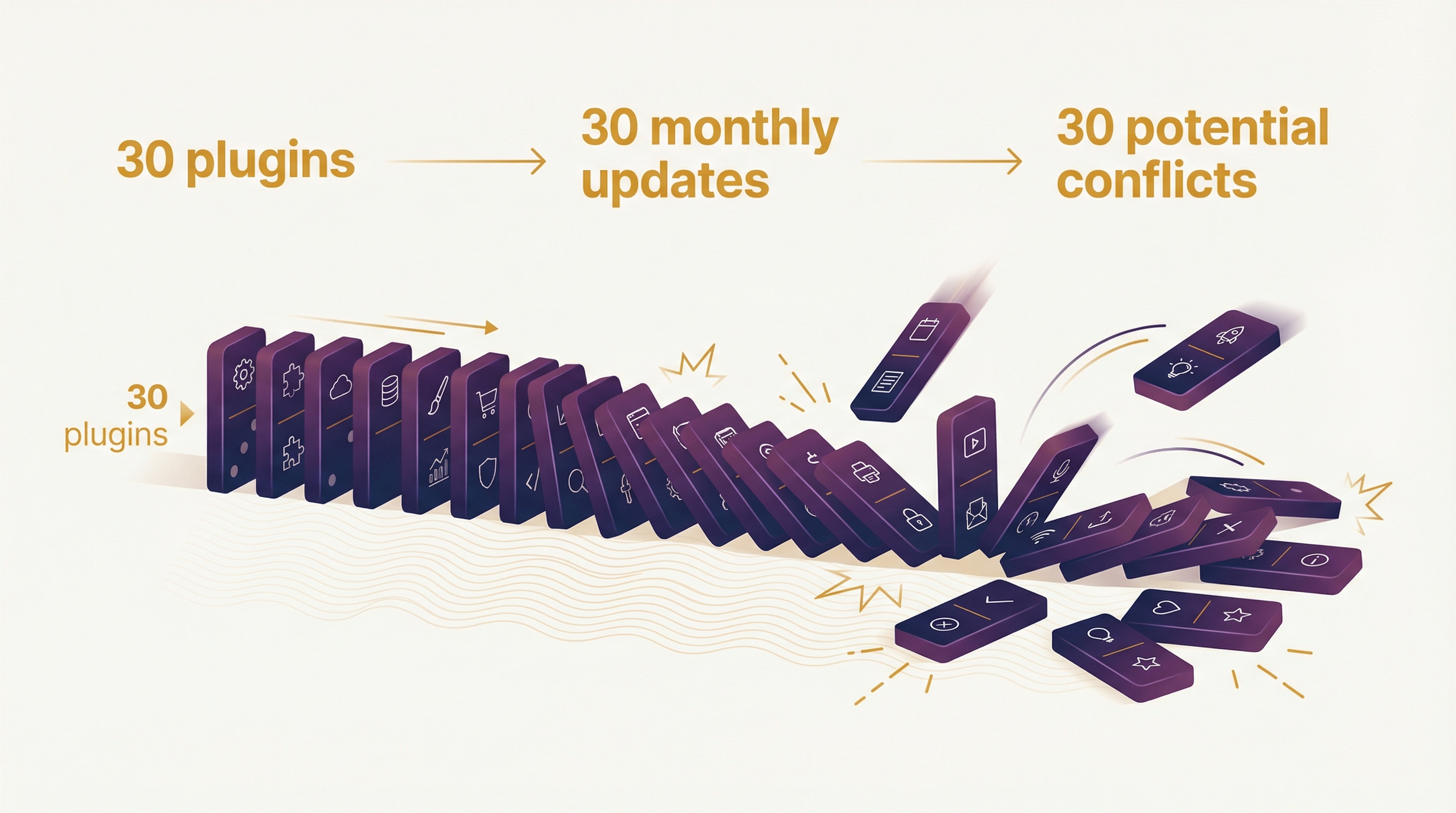
Here's what this adds up to in practice:
Every plugin on your site is a monthly update. Every update is a potential conflict with every other plugin. That's not hypothetical — it's the number one reason WordPress sites break, and it's exactly what the WordPress Paradox describes.
Cut 10 unnecessary plugins, and you've eliminated 10 potential points of failure from your maintenance cycle. That's 10 fewer things that can break during an update. 10 fewer things to test. 10 fewer attack vectors for someone trying to compromise your site.
Fewer plugins doesn't mean less functionality. It means less baggage.
Let WPulse handle what's left
After trimming the fat, you'll still have plugins that genuinely earn their place — your contact form, your SEO tool, maybe an e-commerce plugin. Those plugins still need regular updates, compatibility checks, and backups before anything changes.
That's what WPulse does. Every month, we back up your database, update WordPress core and all plugins, verify everything works, and roll back automatically if something breaks. No plugins installed on your site. No access to your admin panel.
99 kr/month. You reduce the number of plugins. We maintain the ones you actually need.